

- Content Editor — Visual interface in the dashboard for building dynamic values with helper panels
- Template Syntax — Code-based expressions in YAML configuration files
The Content Editor
The Content Editor is a popup interface that helps you build dynamic content with access to variables, functions, and control structures.Opening the Content Editor
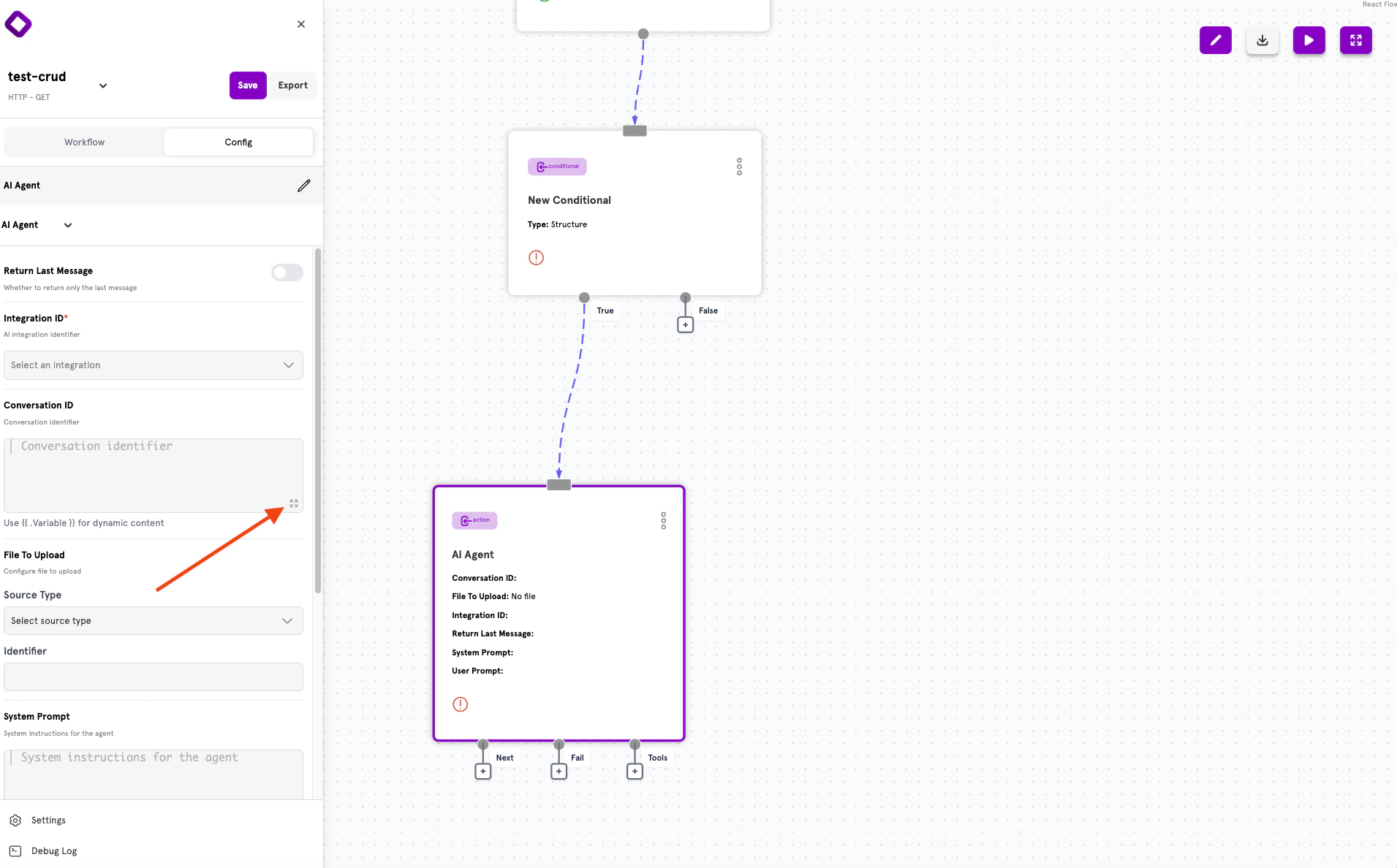
To open the Content Editor:- Click on any text input field in a node’s configuration panel
- Look for the expand icon (⋮⋮) in the corner of the field
- Click the icon to open the “Edit Content” popup
Editor Layout
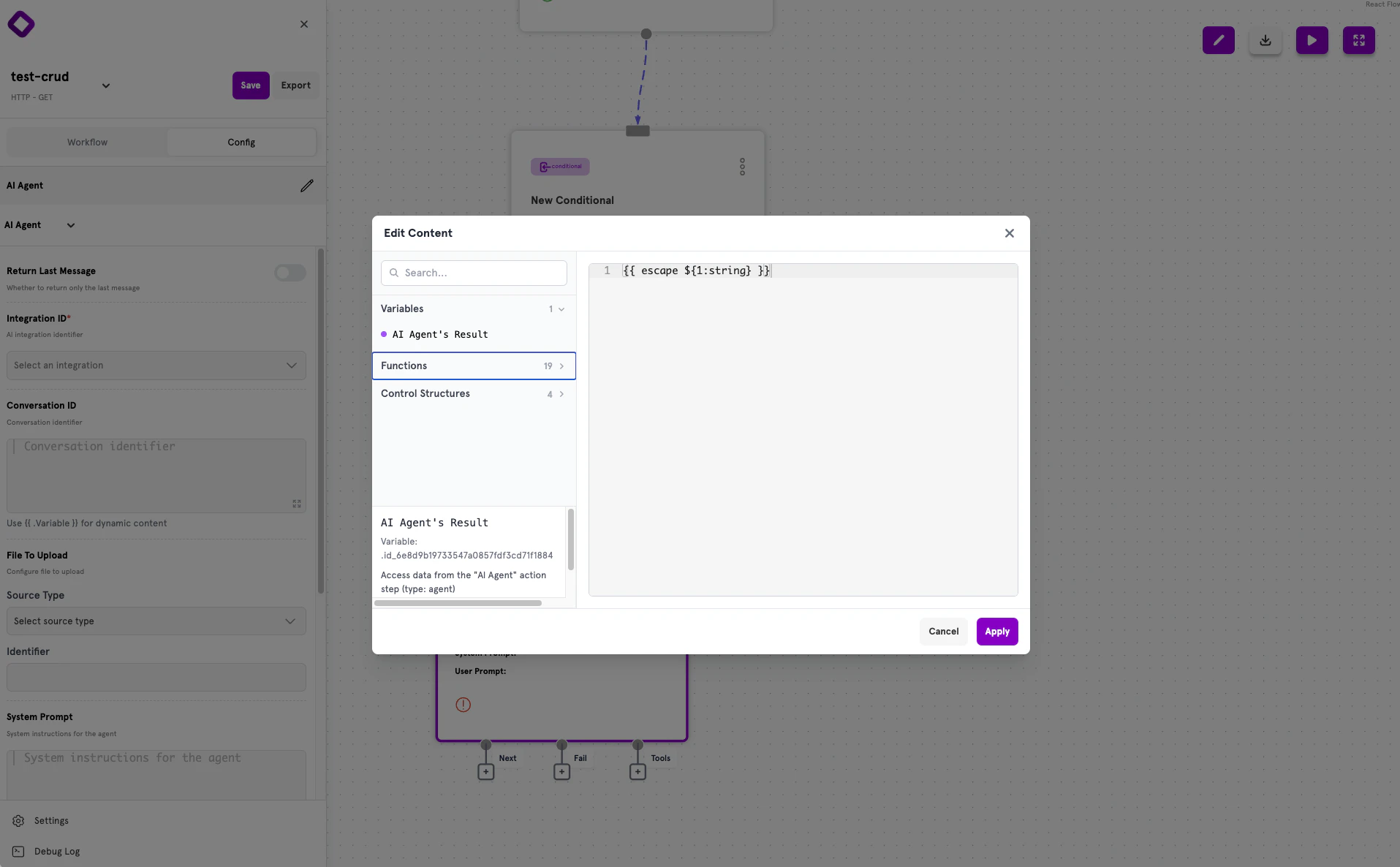
The Content Editor has two main areas:- Left panel — Collapsible sections for Variables, Functions, and Control Structures
- Right panel — Code editor where you write your dynamic content
Variables Panel
The Variables panel lists all action results available from previous steps in your workflow. Each variable shows:- Name — The action’s display name (e.g., “AI Agent’s Result”)
- Variable reference — The internal ID to use in templates
- Description — What data the variable contains
Functions Panel
The Functions panel lists 19 available functions for transforming and validating data. Functions are organized by purpose:- String manipulation (
strip,upper,lower,escape) - Data transformation (
jsonout,pluck) - Comparison and validation (
eq,notempty,email)
${1:string}. Replace the placeholder with your actual value.
Control Structures Panel
The Control Structures panel provides 4 structures for conditional logic:if/else— Conditional renderingrange— Iteration over collectionswith— Scoped variable access
Template Syntax
ServFlow uses Go’s text/template syntax for dynamic values. The syntax you use depends on where you’re editing.Full Template Mode
Most input fields use full template mode, where expressions must be wrapped in{{ }} delimiters.
Expression Mode
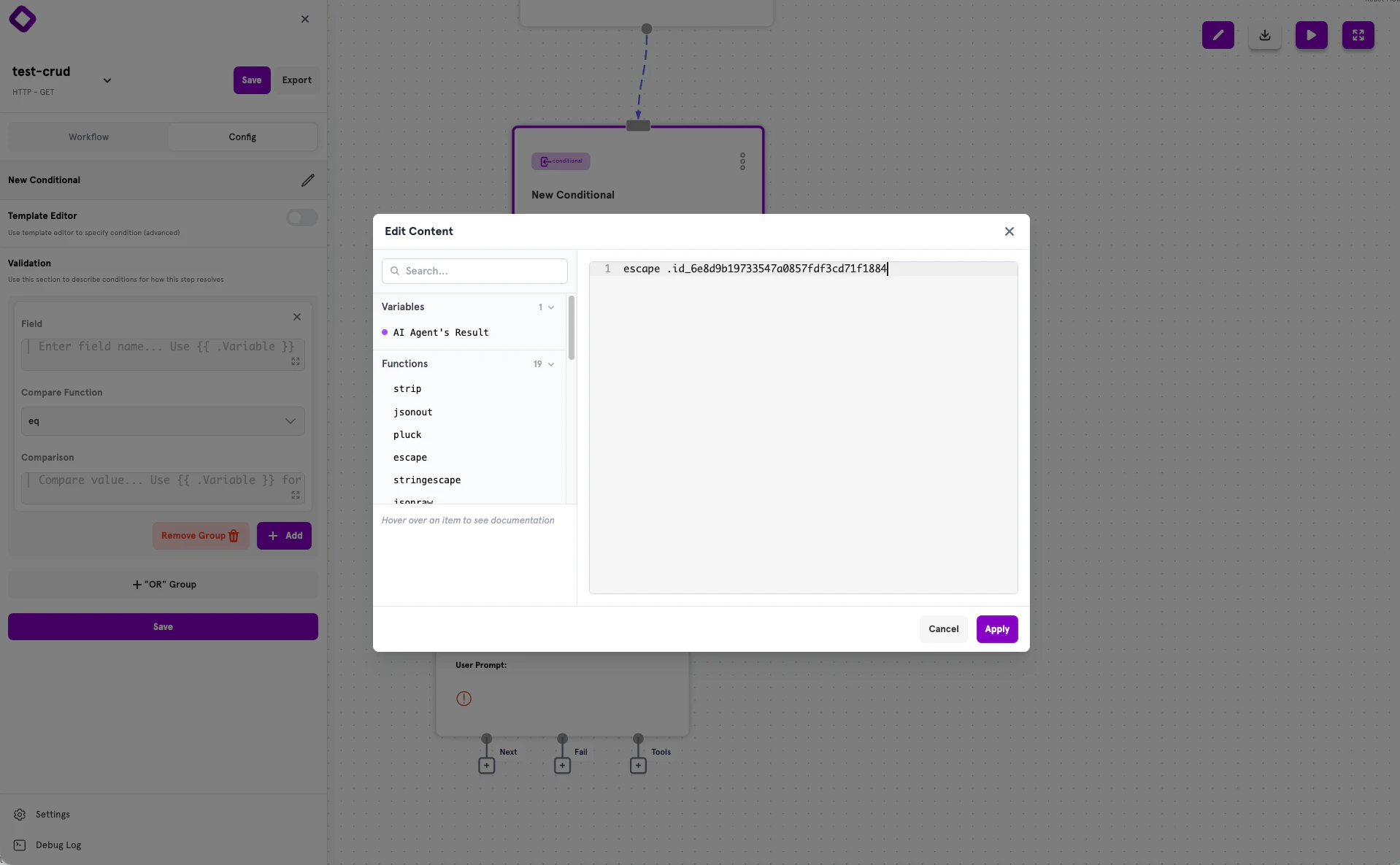
Structured conditional fields (Field and Comparison inputs) use expression mode, where you write raw expressions without{{ }} delimiters. The system automatically wraps your expression.
See the Conditionals documentation for details on structured vs template conditionals.
Accessing Data
Dynamic content can reference data from multiple sources throughout your workflow.Action Results
Access results from previous actions using the action ID with a dot prefix:Request Parameters
Access request body fields and query parameters with theparam function:
Request Headers
Access HTTP headers with theheader function:
Tool Parameters
When an action is called from an AI agent’s workflow tool, access tool parameters:Secrets
Access securely stored environment variables with thesecret function:
Available Functions
String Functions
Comparison Functions
Logical Functions
Collection Functions
Data Functions
Validation Functions
These functions are primarily used in conditionals and collect validation errors:Pipelines
Chain multiple functions together using the pipe operator|. Data flows left to right through each function:
Control Structures
If/Else
Conditionally render content based on a value:With Block
Create a scoped context for nested access:Range (Iteration)
Iterate over collections:Common Patterns
Authentication Token Extraction
Default Values
Safe Strings for JSON
Combining Multiple Values
Conditional Display
Checking Collection Length
Best Practices
-
Use direct action access — Prefer
.actionIDsyntax for accessing action results -
Escape user input — Always use
stringescapefor user input in JSON or database queries -
Provide defaults — Use the
defaultfunction for optional values to prevent empty outputs - Keep templates simple — Move complex logic to JavaScript actions when templates become difficult to read
-
Use multi-line YAML — For complex templates, use
|for better readability:
- Validate early — Use conditionals to validate inputs before processing them in actions
Next Steps
Actions
Learn about actions — the building blocks of workflows.
Conditionals
Add branching logic to your workflows.
Configuration Reference
See the complete ServFlow configuration options.
Secrets Management
Securely store credentials for your workflows.